Flex Workspaces (Formerly Mutual Aid Incidents)
in this lesson
Complex and large-scale incidents — wildfires, multi-day searches, mutual aid events — often require extra people and cooperation across multiple organizations. Flex Workspaces, available to CalTopo Team accounts, let you create a temporary group for exactly these situations. You can quickly bring in people from outside your team and give them instant access to incident-specific maps and data, all without exposing your team's regular account.
⚠️ Flex Workspaces are for specific incidents — not everyday use. Reach for a Flex Workspace when you need mutual aid, extra agencies, or outside participants for a defined event. For your team's day-to-day work, use your standard Team Workspace instead.
Topics on this Page:
- Who Can Join a Flex Workspace?
- Creating a Flex Workspace .
- Expiration .
- Adding Users to a Flex Workspace from outside your team.
- Flex Workspace Data and event maps.
What is a Flex Workspace?
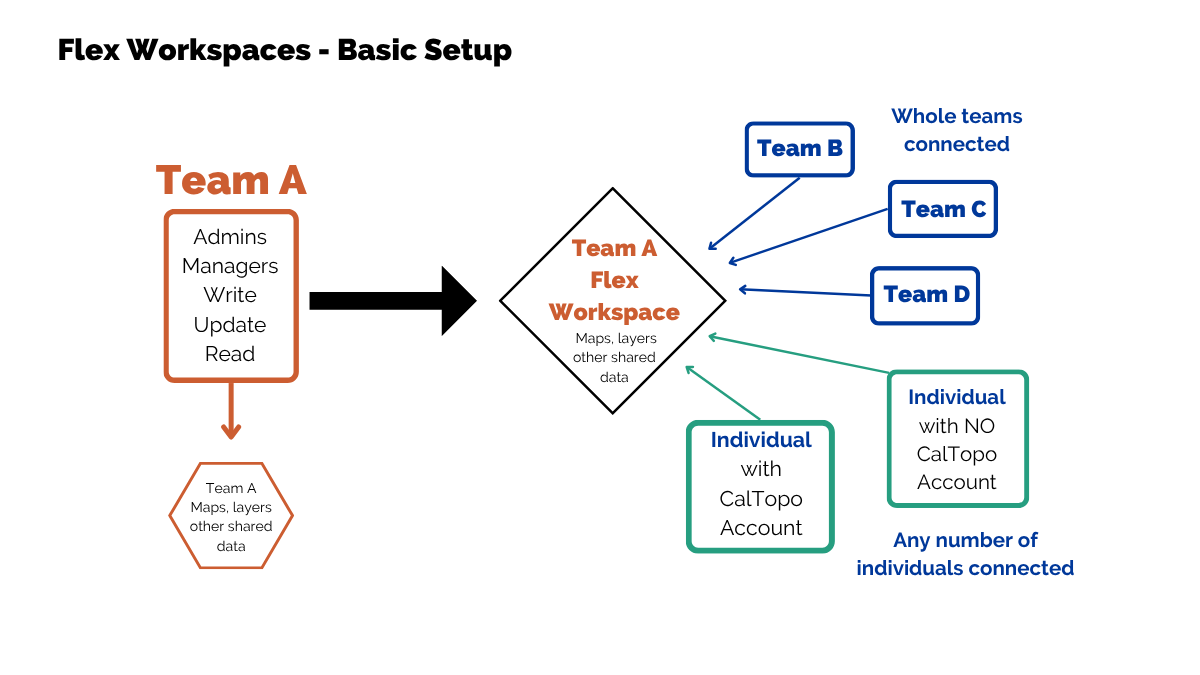
A Flex Workspace expands your team account beyond your team or agency for a specific incident, with no limit on the number of outside users you can add.
Anyone who joins a Flex Workspace becomes a temporary team member and gets all advanced team features for the duration of the incident.

Access and Permissions:
-
Parent-team members see in automatically; sub-teams don't. The team that creates a Flex Workspace is its parent team — members of that parent team can view into the Flex Workspace without being added. But other subteams under that same parent (like a Canine Team or Technical Ropes Team) are treated as separate groups: they need to be added to the Flex Workspace directly, just like any outside user, if you want them to have access.
-
By default, invited outside users can only see maps and data that live inside the Flex Workspace — not anything saved to your main team account — unless you explicitly grant them that visibility.
-
Outside users don't count toward your team's total user count. Add as many as the incident requires.
-
Once the Flex Workspace expires, outside users automatically fall off the account, and any data saved is moved to the main team account.
Who Can Join a Flex Workspace?
A Flex Workspace can include four kinds of users:
| Who | How they join | What they get |
|---|---|---|
| Existing members of parent team | Automatic — no invite needed | Same permission level as on the main team account (upgradeable per-workspace) |
| Members of other Subteams and Outside Teams | Signup link or QR code | Same permission level as on the main team account (upgradeable per-workspace) |
| Individuals with their own CalTopo account | Signup link or QR code | Full CalTopo features for the incident, as a temporary team member |
| Guests with no CalTopo account | QR code on login screen → on-the-spot guest account | Full CalTopo features for the incident, tied to a temporary guest login. This is the core strength of a Flex Workspace: you're not limited to people who already have logins. Anyone with the link or QR code can be looped in within seconds — no advance setup required on their end. |
Creating a Flex Workspace
Team members with Admin or Manage access on the parent team can create a Flex Workspace.
- In the admin page for the parent team, click the "Create Workspace" button.
- Choose Flex Workspace and provide a workspace name.
- Click Create.
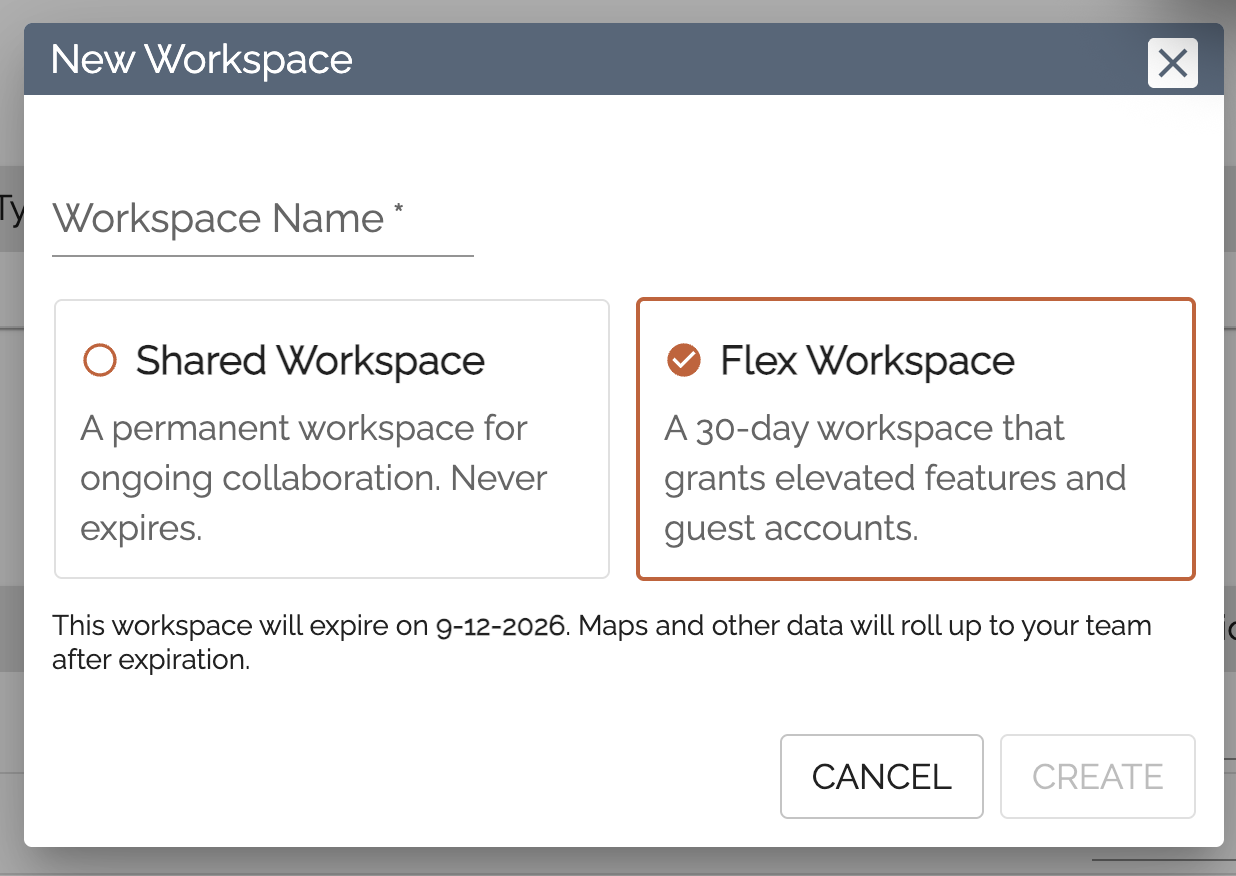
Your new Flex Workspace now appears at the bottom of the Sub-Teams list, along with its permission level and expiration date. Use the pencil icon to edit it, or the trash icon to delete it entirely.

Expiration
Flex workspaces automatically have a 30-day expiration date.
Upon expiration, any data in the flex workspace will be moved to a folder on the parent account. All direct users of the flex workspace will be removed from the workspace.
You may close a flex workspace early by moving any data out of the workspace, then deleting it from the admin tool.
To extend the exipration date, you can add another 30-days, starting one day post-creation. The 30-days will be added from the date you go to extend it, and cannot be added on to the end of the current period.
Adding Users to a Flex Workspace
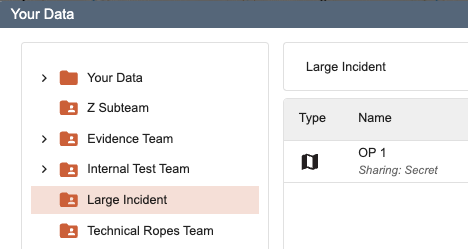
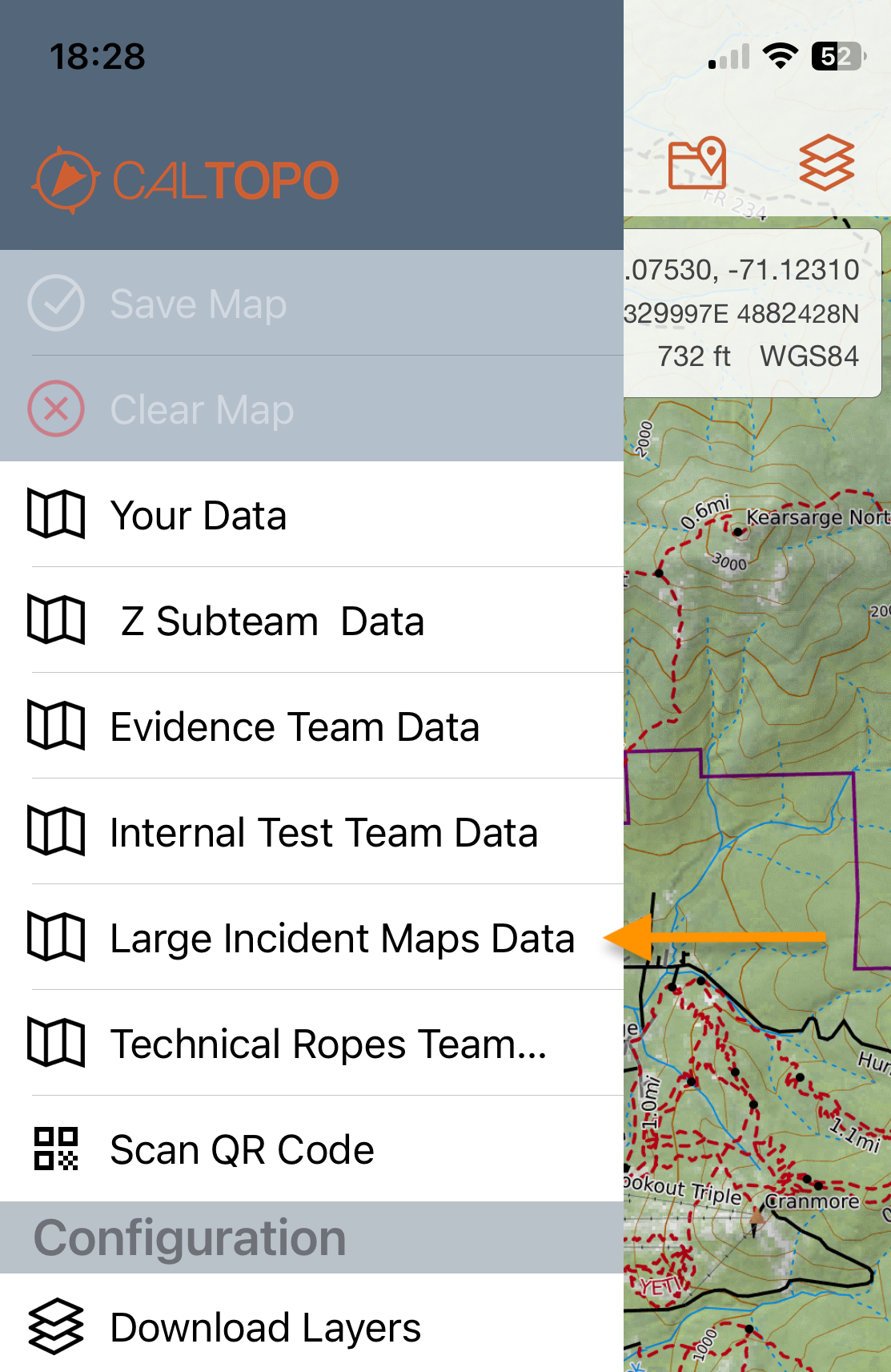
Team members don't need to be added manually — they can already access Flex Workspace maps under Your Data on the web, or in the three-bar menu on mobile, for as long as the Flex Workspace is active.
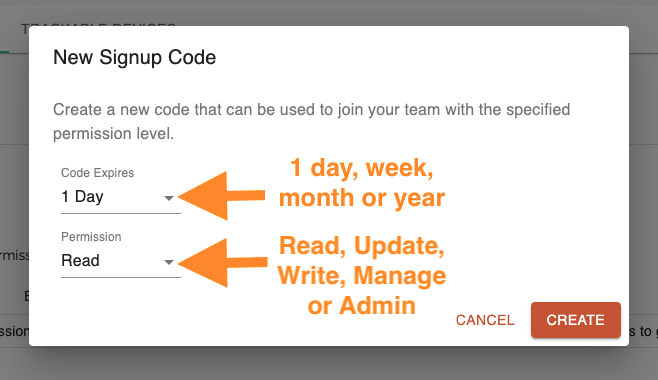
To bring in outside users (or upgrade an existing team member's access for this incident):
- Click the Flex Workspace's name in the Sub-Teams list.
- Under Signup Codes, click Create Code.
- Set an expiration for the code (1 day, week, month, or year) and a permission level (Read, Update, Write, Manage, or Admin) — see the Permission Levels for Team Members chart for details.
- Click Create.
You'll get a shareable link and QR code. You can generate multiple codes with different permission levels for the same Flex Workspace.
Removing or letting a code expire only blocks new signups with that code — it doesn't remove anyone who already joined.
Joining via a shareable link or QR code
Recipients click the link, sign in (or create an account), and select Join Team. If they're on mobile, have them install the CalTopo app first for the best experience.
For QR code use: Open the CalTopo app → three-bar menu → Scan QR Code → Join Team.
Guests joining a Flex Workspace
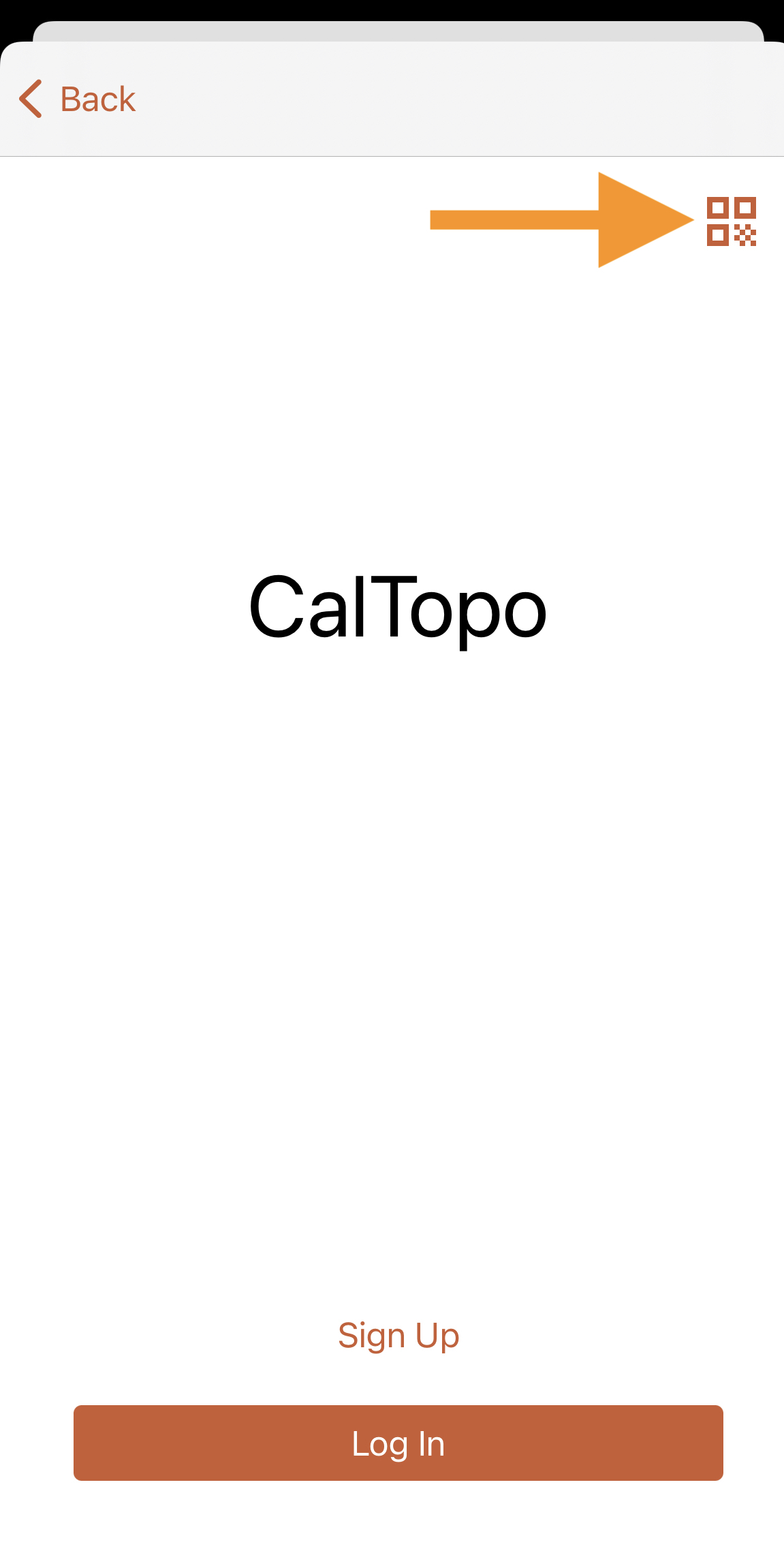
From the app's login screen, tap the QR icon (top right) → scan the code → Guest Account page opens. Enter a name or identifier, accept the Terms of Use and Privacy Policy, and submit. This creates a temporary "name@Guest" account and joins them to the Flex Workspace automatically.
Heads up: guest accounts only work while the user stays logged into the app. If they log out, they lose access to the Flex Workspace entirely. For anything beyond a single session, it's worth encouraging outside users to create a real CalTopo account instead.
Flex Workspace Maps, Layers, and Data
Manage a Flex Workspace just like your main team account — create shared maps and custom layers, add trackable devices, track real-time locations, and more.
One important distinction: Flex Workspace members only see what's saved to the Flex Workspace itself. Anything saved to your regular team account stays invisible to direct members of the Flex Workspace.
Find Flex Workspace maps:
- Web: Your Data → [Flex Workspace name]
- Mobile: three-bar menu → [Flex Workspace name] Data