Map Sheets on Mobile
let's begin
Map sheets saved to your account can be viewed in the CalTopo mobile app and downloaded to your device so they work without a data connection.
Topics on this Page:

Which Map Sheets Can You View on Mobile?
Shared map sheets cannot be viewed in the mobile app. The shared map sheets that you can browse and stack in the web map viewer do not appear on mobile, even when they cover the area you are viewing. To use a shared map sheet on mobile, first save it to your account using CalTopo on the web.
Available on Mobile
- Sheet saved to your account, including a shared map sheet that you have saved to your account on the web;
- Sheet saved to a team account that you are a member of;
- A map sheet that belongs to a specific map (it is a map object on that map.)
Not Available on Mobile
- Shared (public) map sheets. These cannot be viewed on mobile unless you save them to your account on the web first;
- An account map sheet saved in another user's account, even if displayed on a map that you have bookmarked.
Find Your Map Sheets
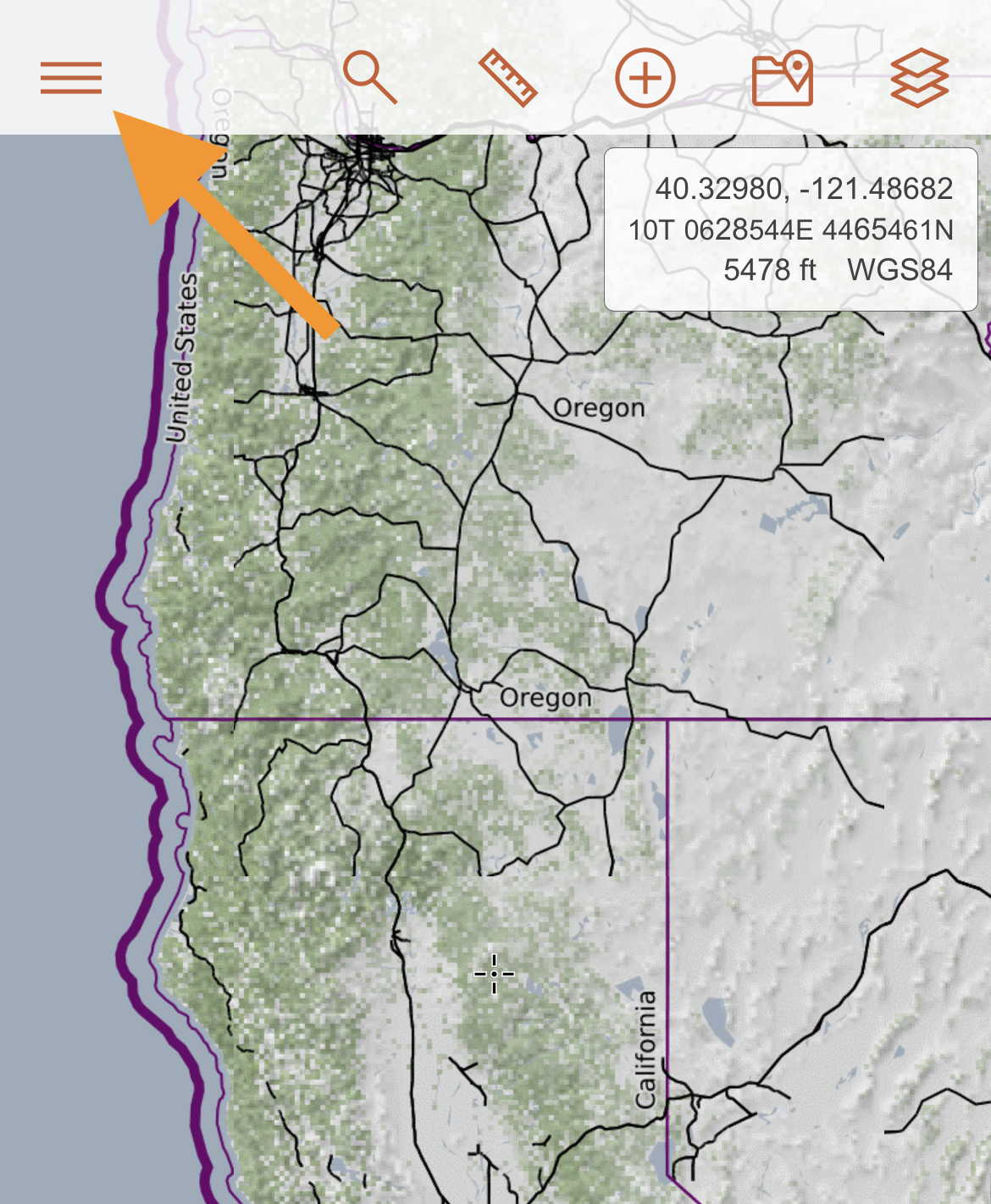
Map sheets saved to your account, whether you saved them on the web or added them from a map in the mobile app, are available in the CalTopo mobile app. To view map sheets saved to your account on the mobile app, tap the 3 bar main menu in the upper left hand corner of the map viewer and then select Map Sheets. Map sheets that are only attached to a map are not in this list. See Map Sheets That Are Only on a Map.
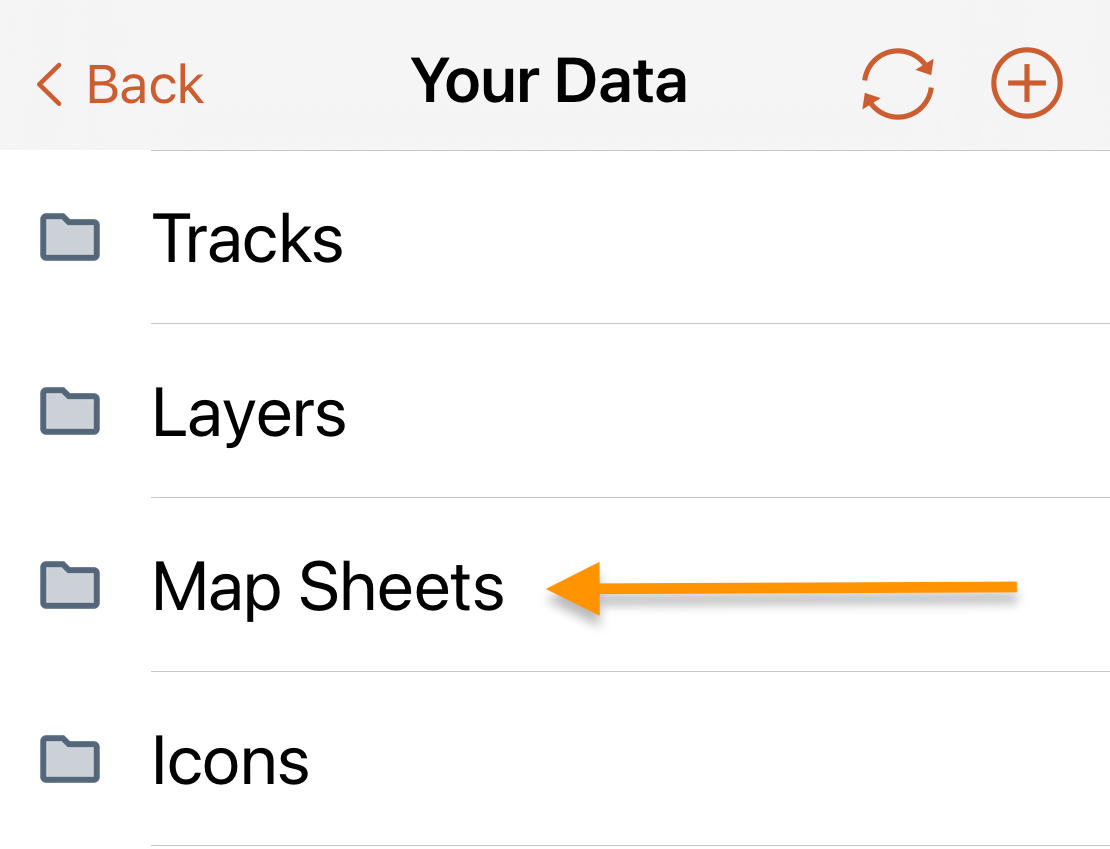
The next screen is a list of the map sheets saved to your account. However, these map sheets are not automatically downloaded to your device for offline use. Until you download a map sheet, you can only use it when you have a data connection. You will need to download each map sheet individually, as needed. See Download Map Sheets for Offline Use.
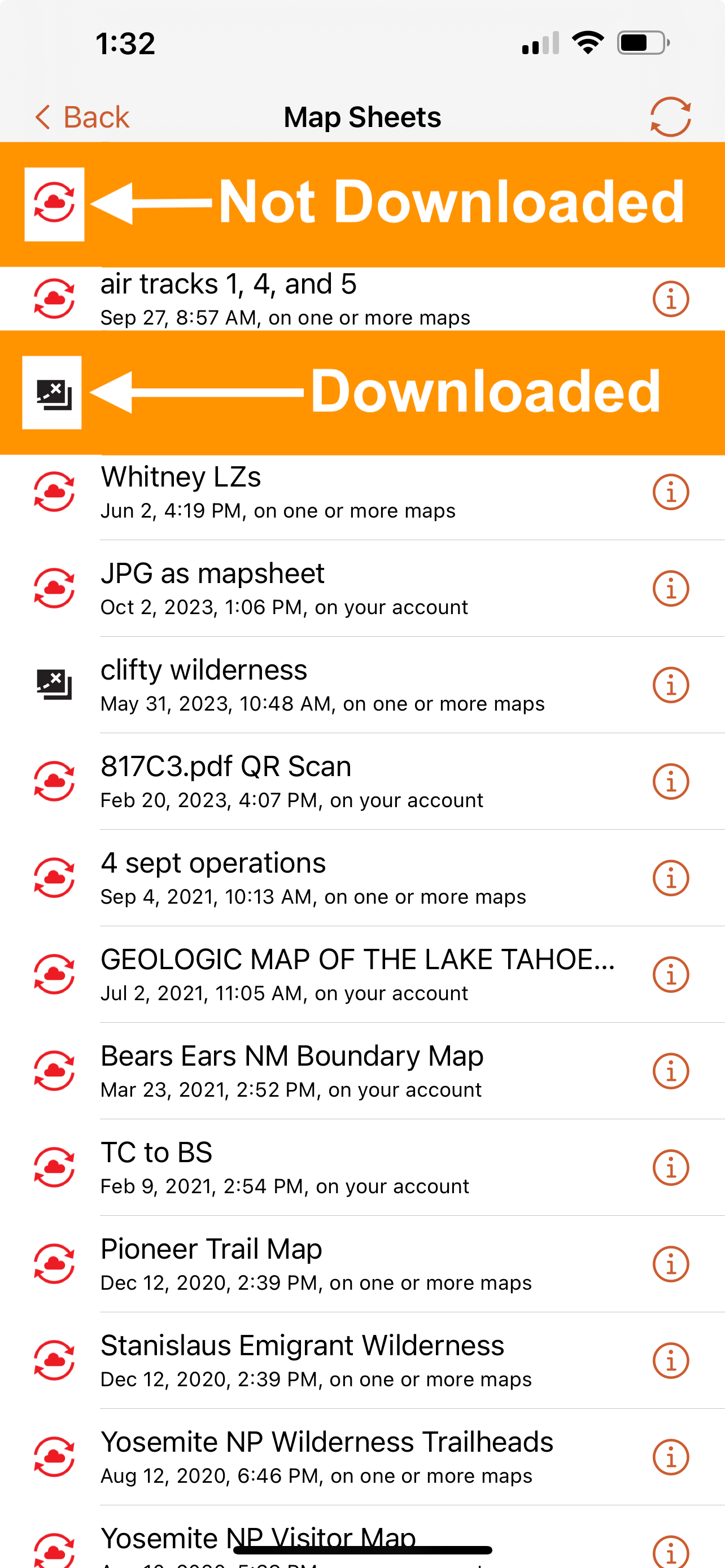
To the left of each map sheet name in the list is an icon that indicates if the map sheet is saved to your device. You must save a map sheet to your device in order to use it without a data connection.
The green arrows icon means the map sheet is saved to your device.

The red arrows and cloud icon means the map sheet is not saved to your device.
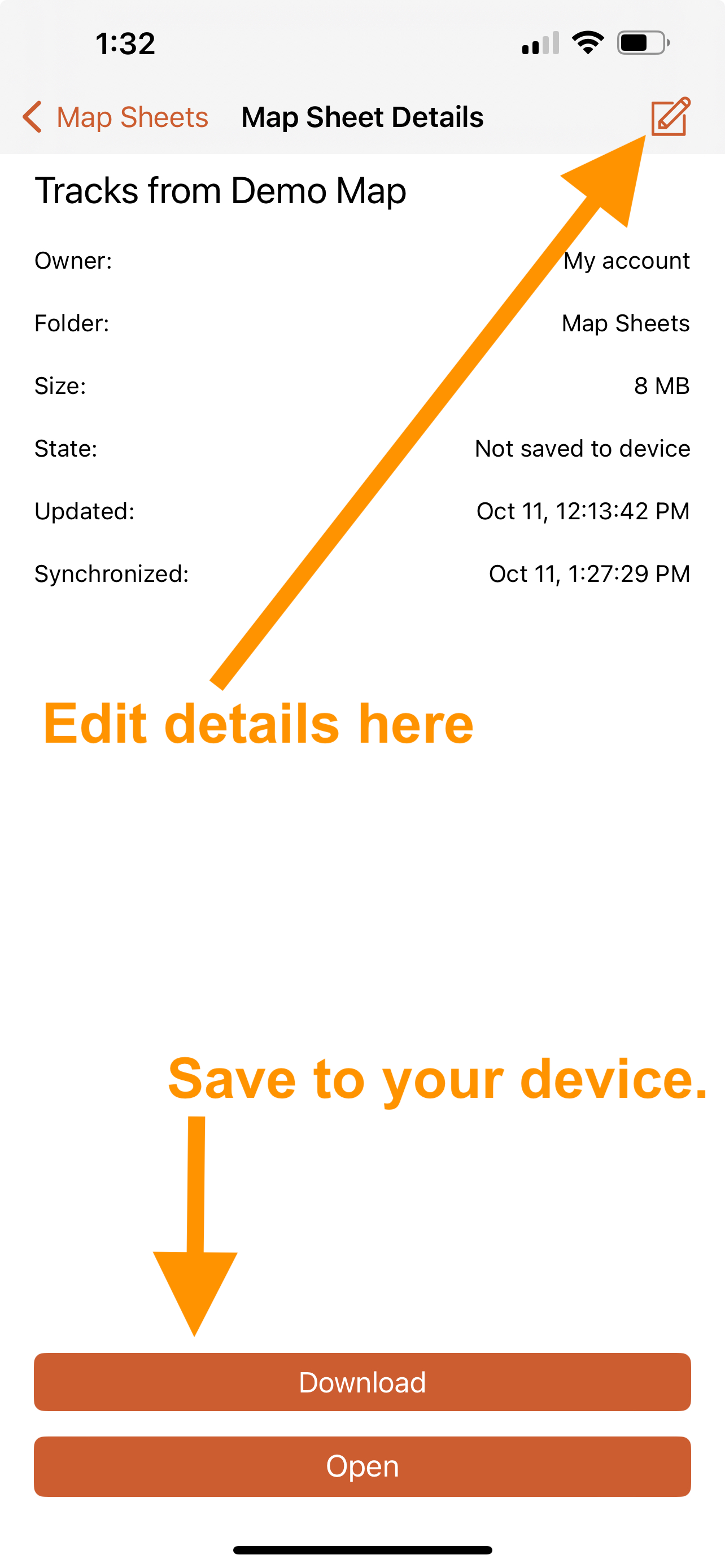
To the right of each map sheet name is an information icon. Tapping that icon will open up a new screen with that map sheet’s details, including its name, size and whether or not it is saved to your device.
Download Map Sheets for Offline Use
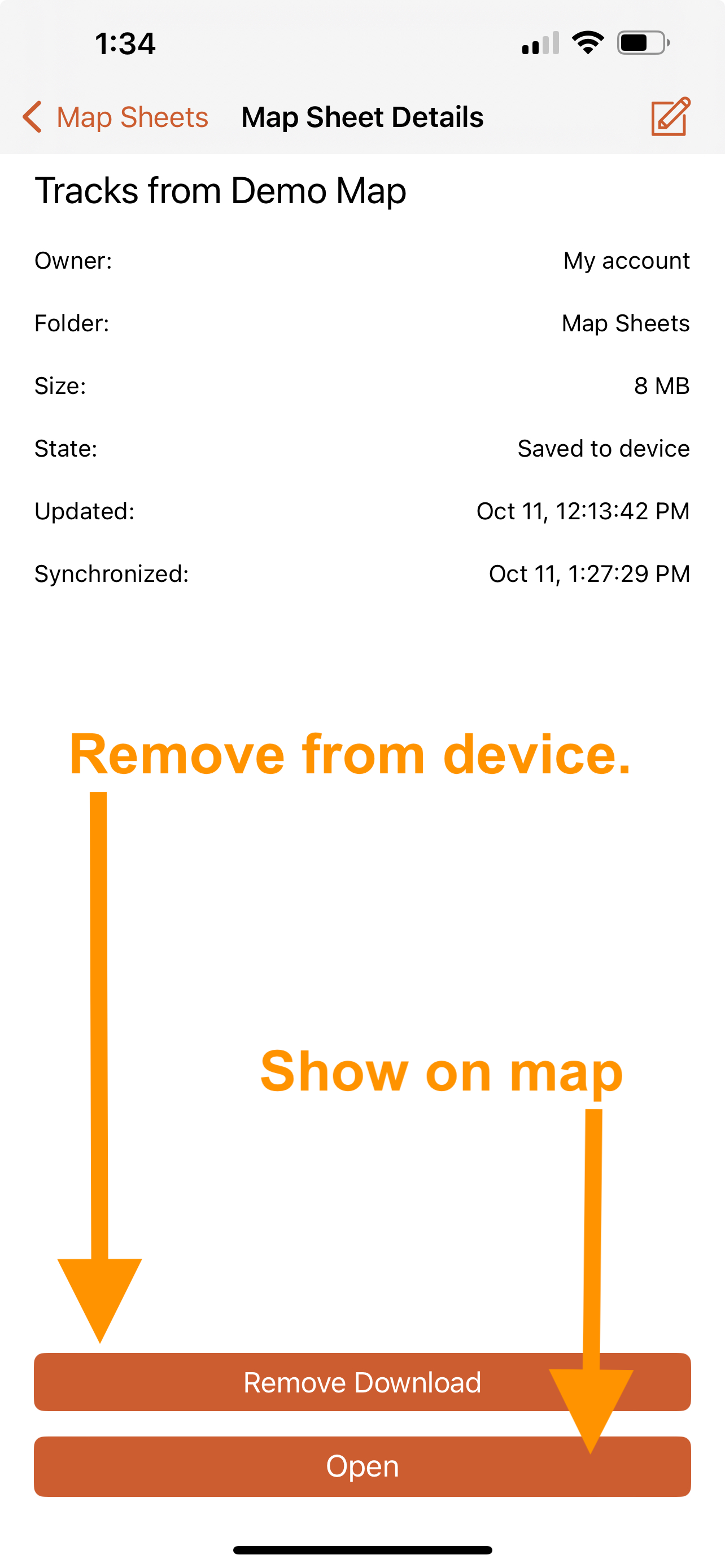
To download a map sheet to your device, tap Download and the map sheet will be saved to your device. It may take some time after you tap Download before the button changes. Once the map sheet is saved to your device, the button changes to Remove Download. To remove the downloaded data from your device, tap Remove Download.
Map Sheets That Are Only on a Map
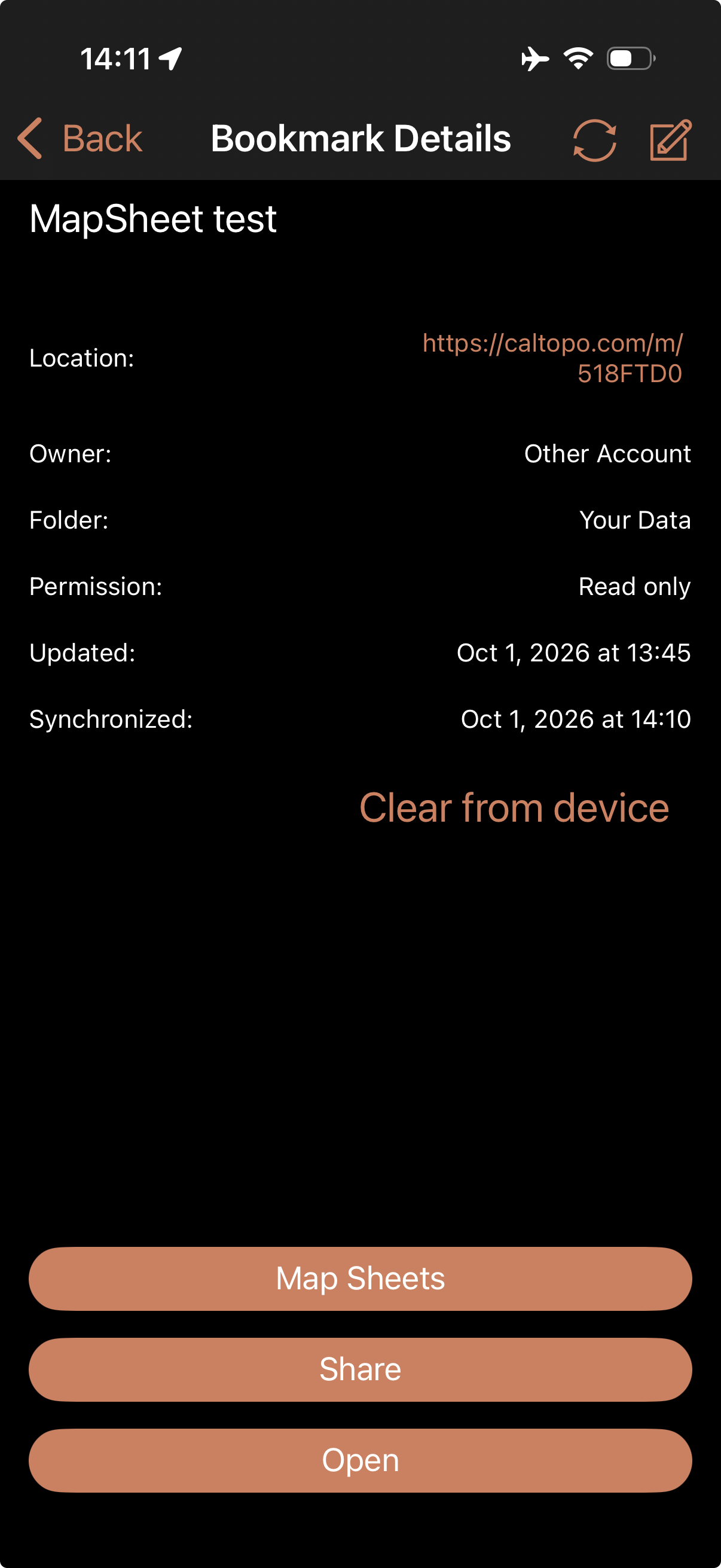
A map sheet that is only attached to a map, and is not saved to an account, is not listed with the map sheets saved to your account. This is true whether you own the map or have bookmarked it. These map sheets are listed on the map's details page, which is called Map Details if it is your map and Bookmark Details if it is a bookmarked map. There are two ways to open it:
- With the map open, tap the 3 bar menu icon and then tap Show Details.
- In Your Data, tap the info icon next to the title of the map.
On the details page, tap the Map Sheets button to see a list of the map sheets that belong to the map. The list uses the same icons as the list of map sheets saved to your account, so you can see which map sheets are saved to your device for offline use.
Downloading, removing and displaying these map sheets works the same way as for map sheets saved to your account. Tap a map sheet in the list to open its details, then use the download button to save it to your device. See Download Map Sheets for Offline Use above, and Display a Map Sheet in the Map Viewer below.
Display a Map Sheet in the Map Viewer
To view the map sheet in the mobile map viewer, select Open at the bottom of the screen. You will be redirected to the map viewer and your map sheet will be displayed.
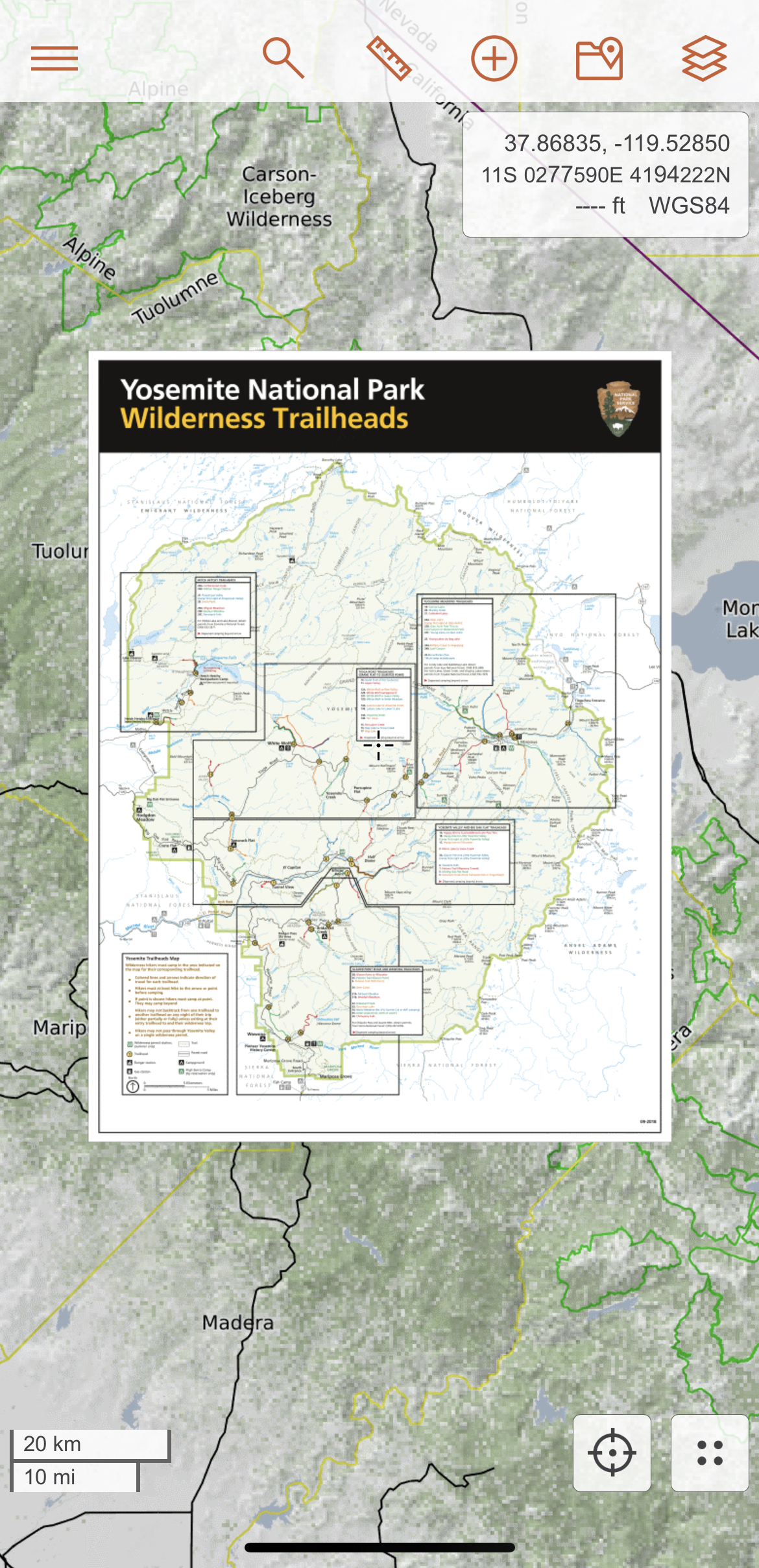
The added map sheet will also appear in the Map Sheets dropdown menu on the Map Layers page. Tap the layers icon in the upper right hand corner of the map viewer to open the Map Layers page.
Your map sheet will be visible in the Map Sheets dropdown menu.
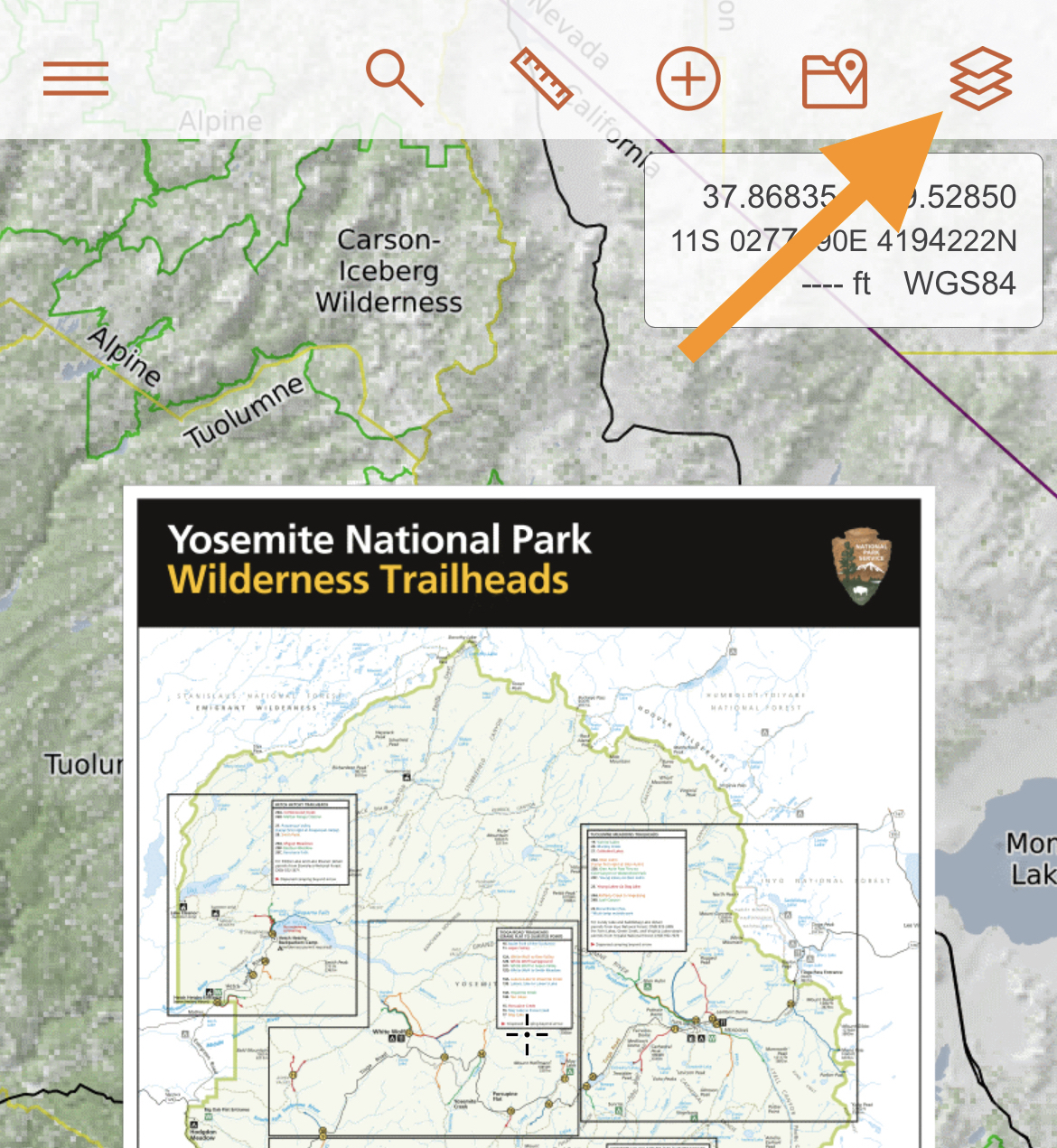
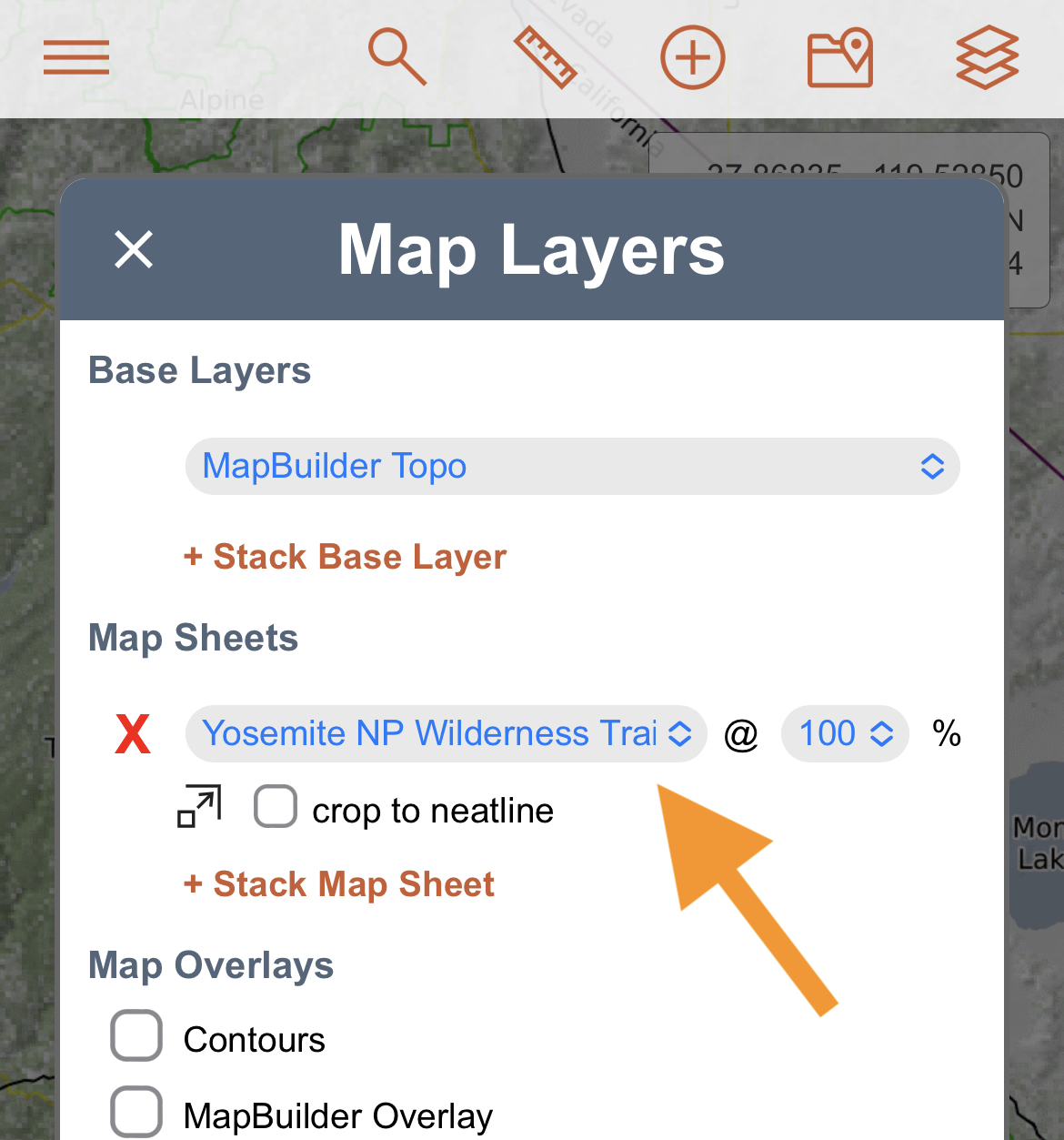
The map sheet will be displayed at 100% opacity by default and you can adjust the opacity using the dropdown menu. You can also select "crop to neatline" in order to hide excess information or space outside the map data border. To remove the map sheet from the map viewer, click the X to the left of the map sheet name.
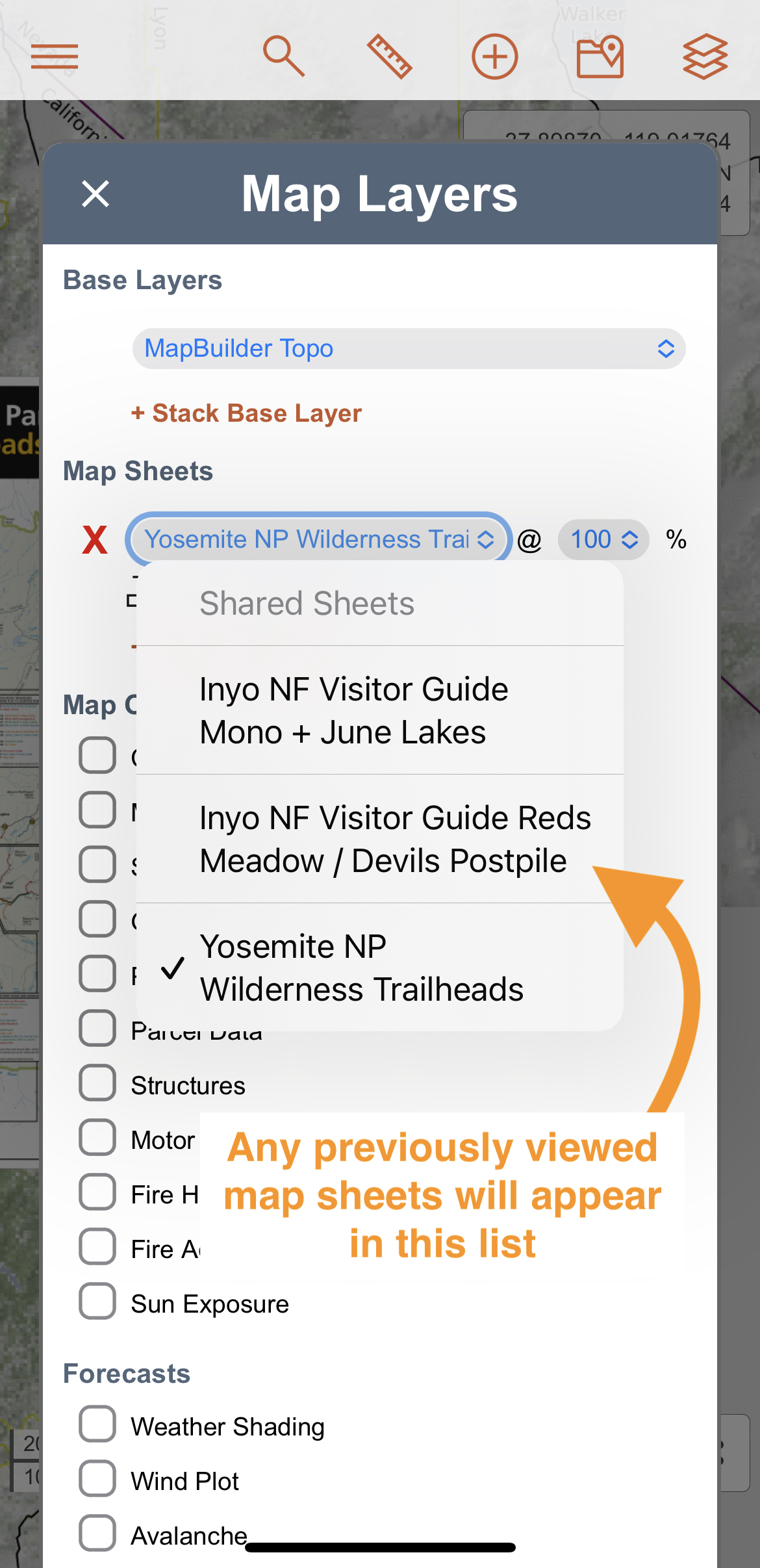
You can also add any map sheets you have already viewed in the map viewer from the Map Layers page. Simply click + Stack Map Sheet and then select the map sheet you wish to display from the drop down menu.
Upload a Map Sheet in the Mobile App
You can also upload a map sheet directly from the mobile app. See Upload a Map Sheet in the Mobile App for the steps.